
Spaced Repetition Learning
Web Highlights turns your highlights into flashcards and uses spaced repetition to help you move knowledge from short-term into long-term memory. Instead of forgetting 80 % of what you read, you review at scientifically optimized intervals and remember it for good.
The Problem: The Forgetting Curve
In 1885 Hermann Ebbinghaus discovered that we lose most of what we learn within days unless we actively review it. His research produced the forgetting curve — a chart showing how retention drops exponentially over time:
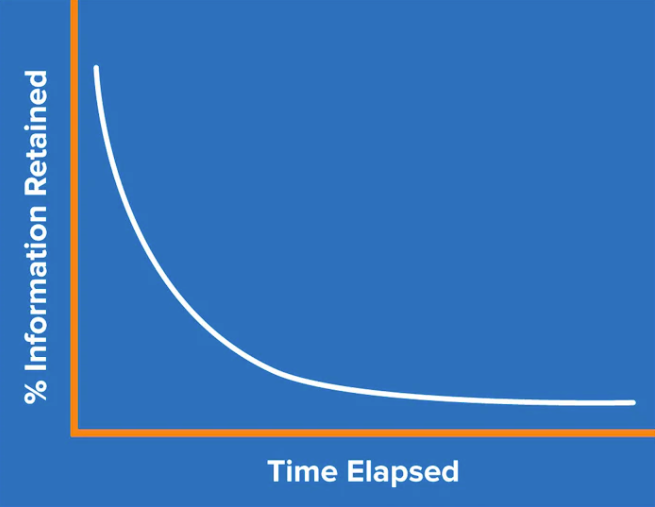
The key insight: each review resets the curve and makes the next one shallower. After roughly five well-timed repetitions, information is considered anchored in long-term memory.
How Spaced Repetition Works
Spaced repetition schedules reviews at increasing intervals. Rather than cramming everything in one sitting, you revisit material right before you are likely to forget it:
| Review | Typical interval |
|---|---|
| 1st | 1 day |
| 2nd | 3 days |
| 3rd | 7–10 days |
| 4th | ~30 days |
| 5th+ | 60–360 days |
The exact intervals adapt to your performance — items you know well are pushed further out, while items you struggle with come back sooner.
Why it works
A meta-analysis across over 1,350 participants confirmed that spaced practice produces significantly better long-term retention than massed (crammed) practice, with a strong effect size of g = 0.74. (Cepeda et al., 2008; Educational Psychology Review, 2020)
The SuperMemo Algorithm
Under the hood Web Highlights uses a variant of the SuperMemo (SM-2) algorithm, originally developed by Piotr Woźniak. Here is how it works in practice:
Easiness Factor (EF)
Every highlight starts with an easiness factor of 2.5. After each review the EF is adjusted based on your self-rated performance:
- "Know it" → EF increases, interval grows (you remembered well)
- "Don't know" → EF decreases, interval shrinks (needs more practice)
The EF never drops below 1.3 (to avoid frustratingly short intervals) and can rise up to 3.2 for material you consistently recall.
Interval Calculation
The next review date is calculated as:
next interval = current interval × EFFor example, if your current interval is 3 days and EF is 2.5, the next review will be scheduled in roughly 8 days. Intervals are capped at 360 days maximum.
Confidence Score
Web Highlights derives a confidence score (0–100 %) from the EF and number of repetitions. This score is displayed for each highlight and aggregated per website, tag, and across your entire library:
| Confidence | Status |
|---|---|
| 80–100 % | Long-Term Memory |
| 60–79 % | Confident Recall |
| 40–59 % | Good Recall |
| 20–39 % | Moderate Recall |
| 1–19 % | Likely to Forget |
| 0 % | Not Yet Learned |
Learning Sessions
A learning session presents 10 flashcards per review — a mix of due items (scheduled for review today) and new items (never reviewed before). When nothing is due, the session is never a dead end: if you have cards scheduled for later, it offers to review them ahead of time — pulling your soonest-scheduled cards forward so you can get ahead. Grading a reviewed-ahead card reschedules it just like a normal review.
Start a session from your library
You don't have to open the learning dashboard to start reviewing — learning fits into normal browsing:
- One bookmark — open a bookmark's details and choose Start learning from its dots menu (shown when the bookmark has at least one highlight). The session starts immediately, scoped to that bookmark's highlights.
- Several bookmarks — select bookmarks in your library and choose Start learning from the multi-select toolbar. The session covers the highlights of all the selected bookmarks.
- Specific highlights — switch the grid to a bookmark's highlights (click its highlight count), select the ones you want, and choose Start learning. The session contains exactly those highlights.
A scoped session works exactly like a normal one — the same flip, Correct/Incorrect grading, and schedule — it just draws only from the highlights you scoped it to.
During a Session
For each card you see the highlighted text in context, along with the source page. On a plain highlight (one without a question and answer) you grade yourself with:
- Know it — You remembered the content. Confidence increases, and the next review is pushed further into the future.
- Don't know — You could not recall the content. Confidence decreases, and the item is rescheduled for an earlier review.
- Discard — Remove this highlight from future sessions entirely.
Cards that carry a question and answer work a little differently — you reveal the answer before grading, and the buttons read Correct / Incorrect. See Turn a highlight into a flashcard below.
Clicked the wrong button? Use the Undo button in the session header, next to the card counter, to return to the previous card. Your last answer is undone — the schedule change it made is reverted — so you can grade the card again.
Turn a highlight into a flashcard
A plain highlight tests passive recognition — you read it and decide whether it felt familiar. For real active recall, turn any highlight into a question-and-answer flashcard. You can start from two places:
- During a session — on a card that has no flashcard yet, choose Add a flashcard.
- From any highlight's toolbar — click the Create flashcard button (the brain icon) on a highlight anywhere in the app. The editor opens in a dialog. This is free.
Then:
- Write the question you want to be asked. The answer is prefilled with the highlighted text, so you usually only need to phrase the question — edit the answer freely.
- Save. The card now shows the question first and hides the answer.
Or let AI draft it for you. On Chrome, the editor shows a ✨ Generate with AI button that drafts a concise question and answer from your highlight using the browser's built-in on-device AI — the same private model as AI Chat: nothing leaves your device. Generation happens in the highlight's language, and you can edit both fields before saving. AI-drafted cards carry a subtle ✨ AI badge in sessions and always show the original highlight under the answer as context. Plans with AI generate unlimited cards; free users get a small daily quota. (The button only appears when your browser supports the built-in AI — see the Chrome AI troubleshooting guide if it doesn't.)
When a card has a question and answer, the session changes to match:
- The card shows the question, and a Tap to reveal answer button sits where the grade buttons would be — so you have to see the answer before you can grade it (real active recall). Discard is still available.
- Tapping it flips the card to the answer, with the original highlight kept underneath as context, and unlocks the review buttons — now Correct and Incorrect instead of Know it / Don't know (they feed the exact same spaced-repetition schedule).
- Once revealed, you can flip back to the question and still grade; the next card starts on its question with grading gated again.
- You can reopen a saved flashcard any time to edit its question or answer.
TIP
Everything is stored on the highlight itself, so your flashcards sync across devices and travel with the highlight wherever you review it.
Turn a whole page into a deck with AI
When a page is worth studying in depth, you don't have to make cards one at a time. On Chrome, open the bookmark and choose Generate flashcards — from the quick-actions button floating at the bottom of the bookmark, or the bookmark's ⋯ menu. A configurator opens and immediately drafts a set of question-and-answer cards from your highlights and the saved page, using the browser's built-in on-device AI — nothing leaves your device, and it focuses on what you highlighted.
- A slider sets how many cards to generate (1–20).
- Cards appear as they're written; each is checked by default and you can edit or uncheck any before saving. Regenerate swaps in a fresh batch.
- Create saves them as a new deck in your top-level Flashcards folder; the cards carry the ✨ AI badge in sessions.
- You then land right on the deck, where you can Start a learning session or Edit the flashcards. The source page keeps a Show flashcards action to reopen the deck any time.
Plans with AI generate unlimited decks; free users get one deck per day. (The option only appears when your browser supports the built-in AI — see the Chrome AI troubleshooting guide.)
Quick actions
Every bookmark has a quick-actions button floating in the bottom-right corner — click it to reveal AI summary, generate or show flashcards, open the dashboard, and start a learning session. It takes no space and folds away, so it never gets in the way of a long list of highlights.
Generate flashcards from any website, YouTube video or PDF — no account
You don't need the extension or an account to try AI flashcards. Three free tools turn a source into a deck in one click, using the same on-device AI:
- Website Flashcard Generator — paste any URL; the page opens in the reader and the generator drafts a deck for it.
- YouTube Flashcard Generator — paste a video link; the video opens in the reader with its transcript and the generator drafts a deck from it. The video needs captions — without them there is no transcript, so no cards can be drafted.
- PDF Flashcard Generator — upload a PDF (lecture slides, a textbook chapter, a paper); it opens in the viewer and the generator drafts a deck for it.
All three run entirely in your browser, are free, and need no signup — the same one-deck-per-day limit as the signed-in free plan applies, and the built-in AI requires Chrome 138+ (see the Chrome AI troubleshooting guide). The YouTube tool additionally applies the free one-video-per-day limit that every YouTube surface shares.
Long sources are read from the front
The on-device AI reads roughly the first 20 minutes of speech (or the equivalent in text) at once. For anything longer the generator tells you the cards cover only the opening section — highlight the passages that matter and generate again, because your highlights are always fed to the model first.
Step-by-step guides: create flashcards from any website and from any PDF.
Create flashcards without a page
Not everything you want to remember comes from a web page. From the learning dashboard, choose Add flashcard to create a card from scratch:
- Pick an existing deck or name a new one — for example "English Vocabulary" or "Capitals of the World".
- Write the question and answer and save.
The card lands in that deck and is immediately part of your next learning session, reviewed with the same spaced-repetition schedule as your highlights. A deck is just a bookmark in your library, so you can browse its cards, tag it, and organize it like anything else.
Explore ready-made decks
Don't want to author cards yourself? The learning dashboard has an Explore decks section (there's a matching button right in the hero) with a curated catalog of ready-made flashcard decks — subjects like Geography, Anatomy or Computer Science, each organized into categories with three to five difficulty levels. Every deck card shows its level and how many cards it contains, and a Preview shows the first few questions before you commit.
Technical decks — like the five-level React learning path — put real code on the cards: fenced snippets render as proper code blocks on the session card (and on the deck's article page on the website), so "What does this snippet render?" questions read the way code should.
Click Import and the deck lands in your library — filed under Flashcards/<Subject>/<Category>/ — with all its cards immediately learnable. Decks you already imported show ✓ In your library with an Open action that focuses the dashboard on just that deck. Importing the same deck twice never creates duplicates.
Filter what you learn
By default a session draws from all your highlights. To focus, use the search and filter bar at the top of the learning dashboard — the same one you use elsewhere in the app:
- Search for a word to learn only the highlights that contain it.
- Filter by tag or website to drill into one topic or source.
- Toggle Has Q/A to learn only your question-and-answer flashcards (or No Q/A for only plain highlights).
Filters scope the whole dashboard — the schedule, confidence breakdown, card list, and the next session's deck all narrow to what matches. Whenever a filter is active, a banner across the top of the dashboard hero names your current scope (e.g. Filtered to medium.com · Cards with Q/A · 12 cards) with a prominent Clear filters button, so it is always obvious that you are looking at a subset — and one click takes you back to everything. The learning view always stays limited to highlights, so a filter never turns your board into pages. The filter bar stays available while a session is running, and the session header names your current scope in plain text (e.g. medium.com · Cards with Q/A) with a clear button right beside it. Change or clear a filter mid-session and the remaining cards re-scope instantly — cards you already reviewed keep their grades. And if nothing matches your filters, both the dashboard and the session say so clearly and offer a one-click Clear filters. If the cards in scope simply aren't due yet, the session says Nothing due right now and offers to review them ahead — rather than pretending there is nothing there. You can also scope a session straight from your library — see Start a session from your library — without opening the filter bar at all.
After a Session
A summary shows how many cards you reviewed, how many you knew, and your current learning streak — the number of consecutive days you have completed a session.
Learning Streaks
Completing at least 10 cards per day counts toward your daily streak. The learning dashboard's hero panel tracks your current streak, longest streak, and total days learned, while a Learning history contribution graph shows your learning activity over time.
Daily Reminder
You can enable a daily email reminder to nudge you into starting your learning session — helpful for building the habit in the first few weeks.
Learning Dashboard
The learning dashboard leads with today's session: a hero card shows how many cards are due and why a short session matters (how many at-risk highlights it protects), with one primary Start learning button; beneath its actions the main panel shows your momentum — current streak, longest streak and total days learned. Its side panel tracks your progress toward the daily goal and a rotating science quote. Below the hero you get the full overview:
- Memory strength — "Where your N highlights stand": a header with your average confidence (Ø), a single proportional bar of every group (Long-Term Memory → Discarded), and a legend showing each group's card count and share of your library. Click a group (e.g. Likely to forget) to filter to just those cards
- Learning history — A contribution heatmap of your learning activity over the past several weeks, with a Less→More intensity scale in its header
- Browse and learn — Four lists — Websites, Tags, Pages and Folders — each an ordered-by-card-count list of rows with a favicon/icon, a card count, and a small memory-strength bar. Each list paginates with prev/next arrows and has a subtle per-list search to find a specific one. Click a row to scope the whole dashboard and your next session to it (it shows as a removable chip in the filter bar), or use a row's ▶ Learn button to apply the scope and jump straight into a session of only those cards
- Highlights — A sortable, searchable, responsive list of every learning item (source, highlight, memory strength, next review) — scoped by the same filters, searchable by highlight text or source, and now available on mobile too. Sort by next review, confidence, last learnt, or discarded status — sorting by discarded status pulls discarded highlights to the top, so you can quickly find and un-discard any you dropped by accident
Getting Started
- Highlight text on any webpage or PDF
- Open the Learning Dashboard — via the Learning entry in the app's sidebar navigation or the Learn button. This always opens a fresh dashboard: active learning filters are cleared, and a running session returns to the dashboard overview
- Start a learning session and rate each card
- Come back daily — even 2–3 minutes a day builds lasting knowledge
INFO
The learning feature is available on all platforms — the browser extension sidebar, the web app, and on mobile.
Try It Free — No Account Needed
You don't need to install anything or sign up to try spaced-repetition learning. Open the free learner at app.web-highlights.com/learner and either:
- Pick a ready-made set — curated flashcard packs load into a deck with one click, and
- Start blank — create your own flashcards on the spot.
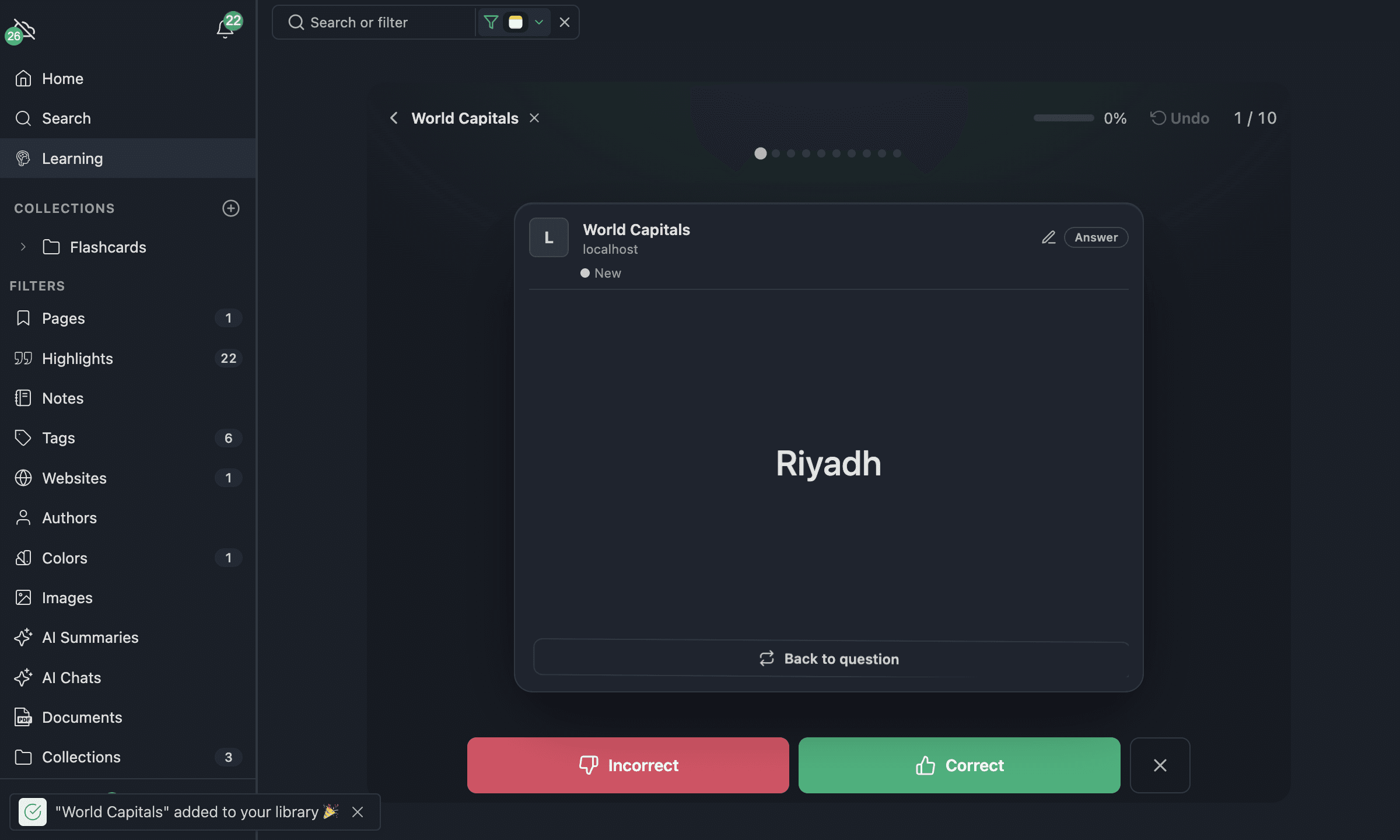
The ready-made sets live in the Learning Hub — free, searchable learning paths where every flashcard is readable inline. Each subject is split into categories (themes), and each category is a three-level path (beginner → advanced) you can preview in the browser and load with one click. Launch subjects include Geography (Capitals, Flags), Law School (Fundamentals, Constitutional Law), Anatomy (Foundations, Cardiovascular System), Computer Science (Fundamentals, Web Development) and English Vocabulary (Core Vocabulary, Idioms & Phrasal Verbs) — with more on the way.
When you load a set, it is filed in a matching folder so you can find it again: imported decks land under Flashcards / <Subject> / <Category> / in your library, and the flashcards you create yourself sit in the top-level Flashcards folder.
The learner is the real Web Highlights learning hub — sidebar, search and filters included. Every set you load becomes a deck in your local library, so you can load several sets, switch between them with the filter, and return to app.web-highlights.com/learner any time to continue exactly where you left off. Everything works right in your browser and is stored locally — only syncing is off until you sign up. When you're ready to keep your progress across devices (or explore the rest of the app), create a free account — your decks and learning history are merged into it automatically. (The free daily limit is the same as the signed-in free plan.)
Further Reading
- Spaced Repetition: Retain Your Readings Long-Term — Our in-depth blog post on the science and practice
- Roediger & Karpicke (2006) — The Power of Testing Memory — Foundational research on the testing effect
- Cepeda et al. (2008) — Spacing Effects in Learning — Meta-analysis on optimal spacing intervals