
Add Content
The Add Content feature lets you bring material into your Web Highlights library without visiting it in the browser first. Use it for your own notes, prompts, reference texts, or any URL you want to save and annotate.
Plan requirement
Add Content is available on the Ultimate plan. Check Settings → Plan or Pricing for your account.
Opening the dialog
Click the Add Content button (➕) in the top area of the web app. The dialog opens with two tabs: Text and URL.
Text — paste your own content
Use the Text tab when you want to add content that doesn't live on a webpage — your own notes, prompts, templates, or any text you want to keep in your library.
- Open the Add Content dialog.
- Make sure the Text tab is selected (it is the default).
- Paste or type your content into the editor.
- Click Create.
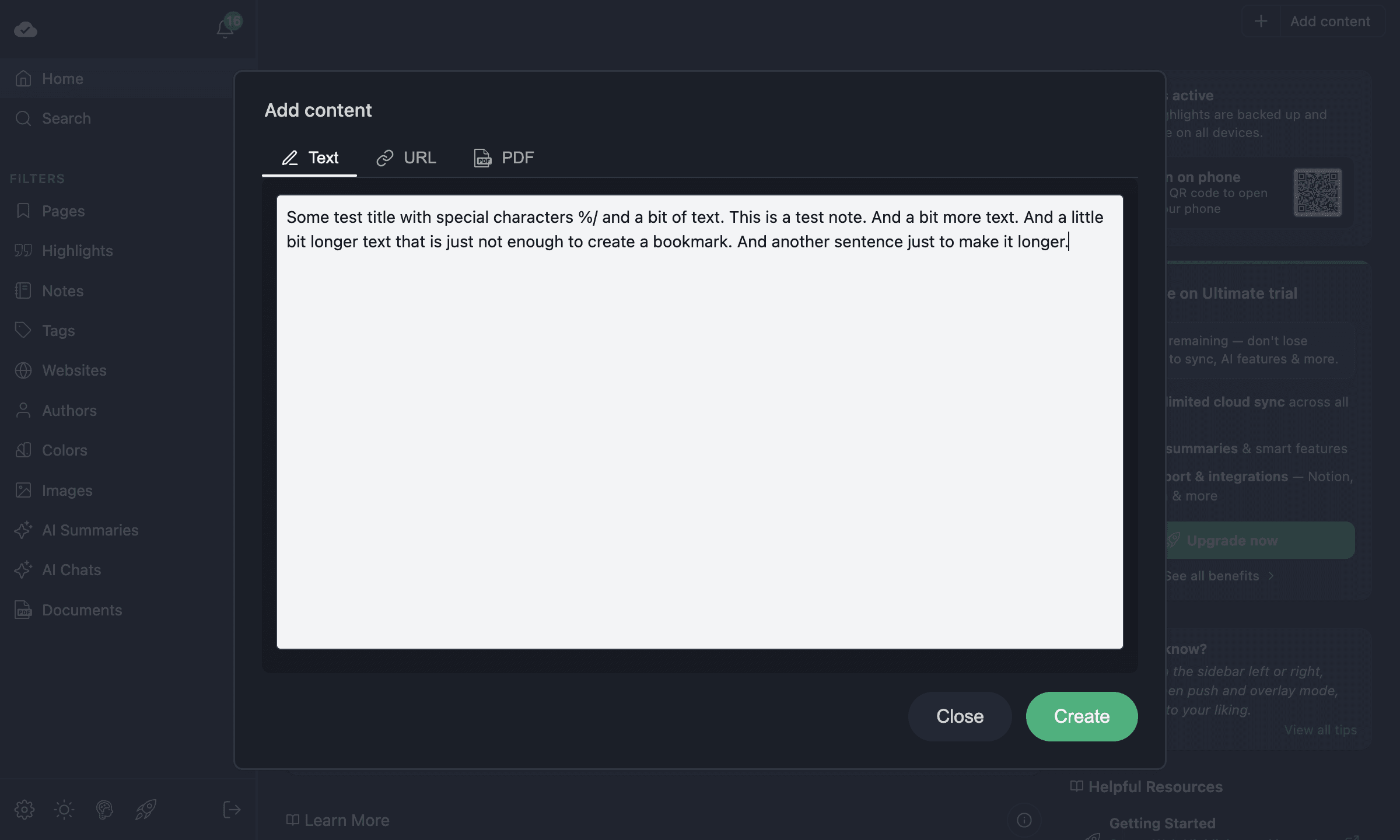
Web Highlights creates a new page from your text. The first line becomes the title, and the remaining text becomes the description and page body. The page opens in the Reader tab, where you can:
- Highlight parts of the text with any color
- Add tags and notes to your highlights
- Open it in Reader Mode for a distraction-free view
- Export it via Markdown, Notion, or Capacities
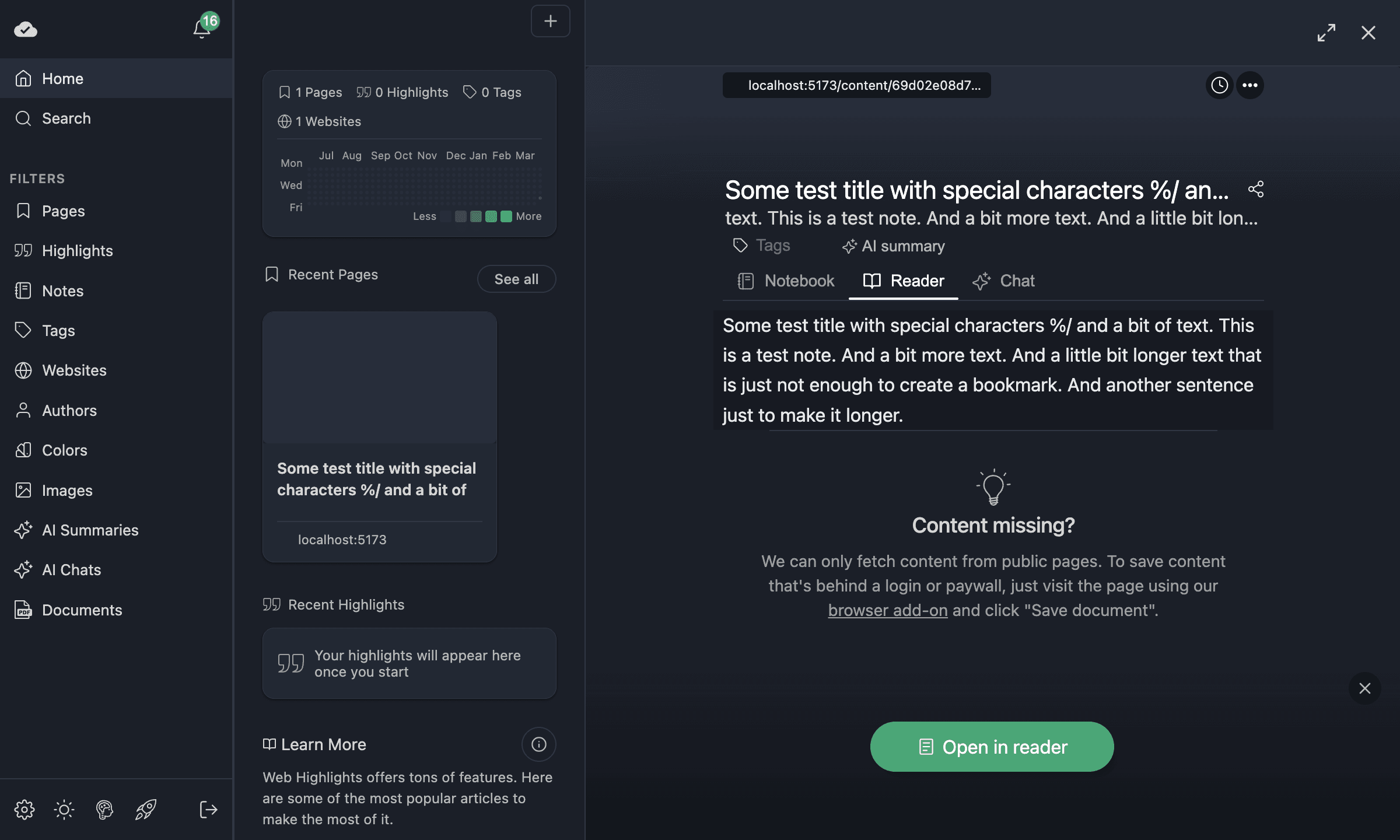
The page behaves exactly like any page you highlighted with the extension — it shows up in your grid, is searchable, and syncs across devices.
URL — import a webpage
Use the URL tab when you find an article, blog post, or any webpage you want in your library without opening it in the extension.
- Open the Add Content dialog.
- Switch to the URL tab.
- Paste the full URL of the page.
- Click Search — Web Highlights fetches the page title, description, and preview image.
- Edit the title or other details if needed.
- Click Create.
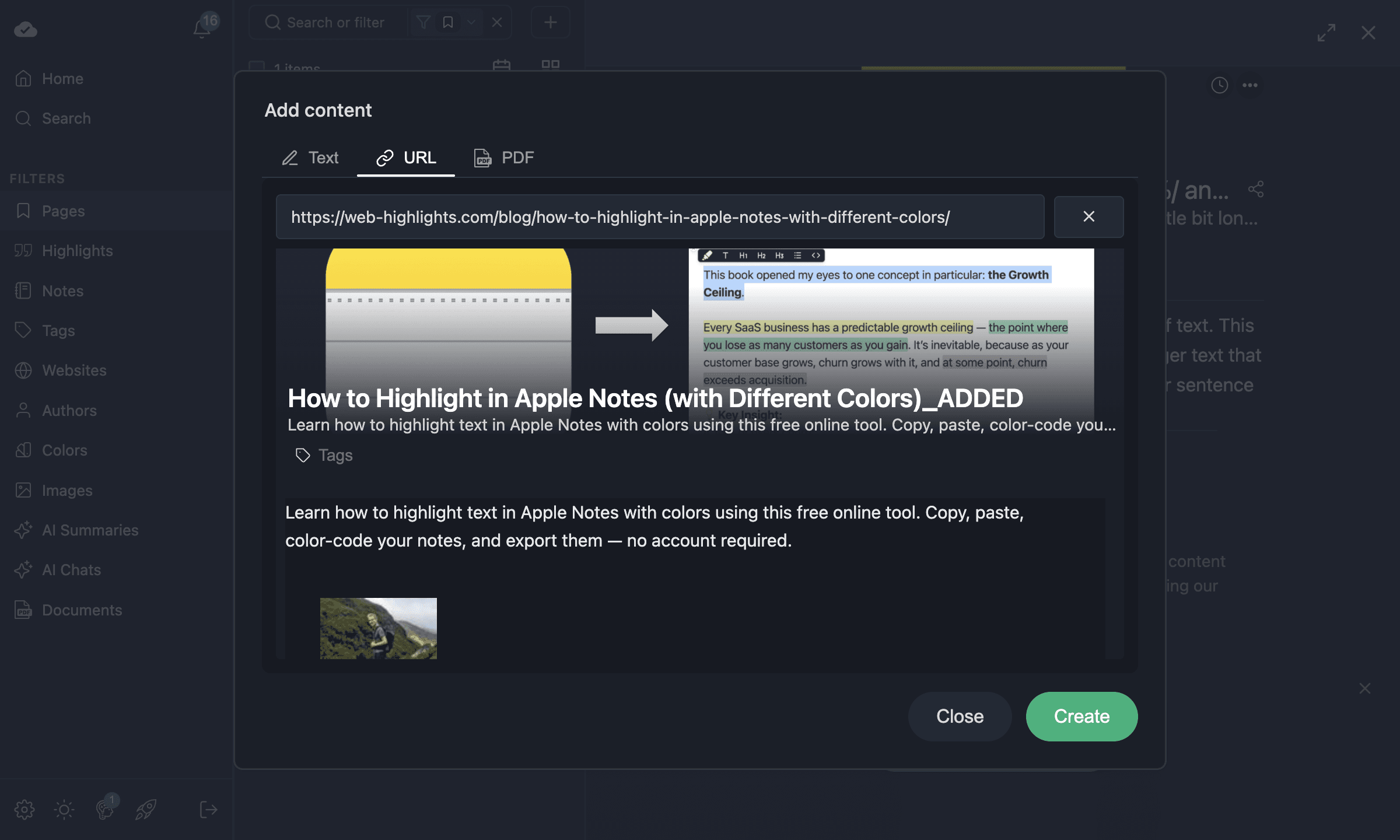
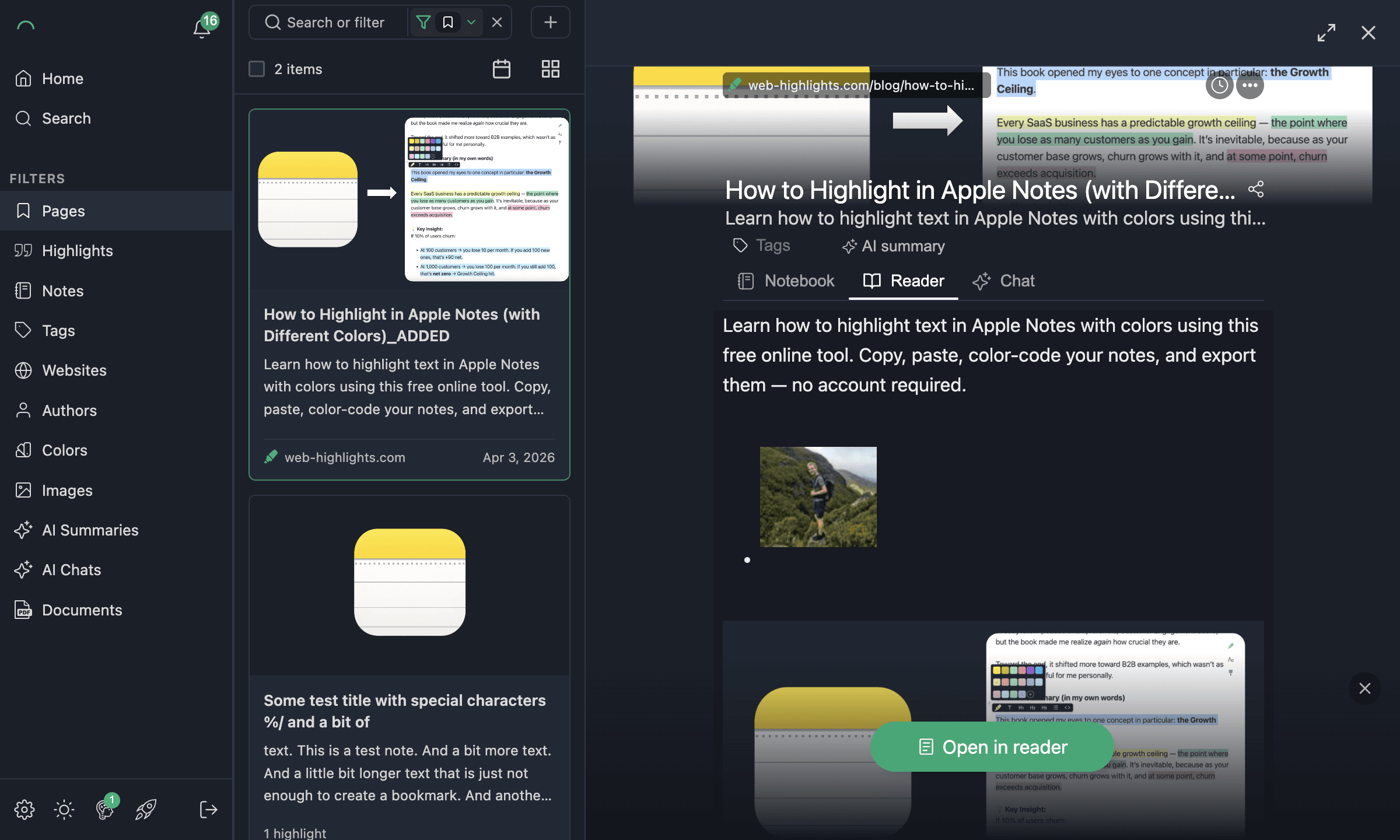
The page content is fetched and stored in your library. You can highlight and annotate it in the Reader tab, just like a text import.
Duplicate detection
If you import a URL that already exists in your library, Web Highlights opens the existing page instead of creating a duplicate.
Use cases
- Prompt library — Paste AI prompts you've crafted and tag them for easy retrieval to organize Your AI Prompts efficiently.
- Meeting notes — Paste notes from a call and highlight the action items.
- Reference material — Import a URL to an article you want to read and annotate later.
- Snippets and templates — Store reusable text (email templates, code snippets) as highlightable pages.
Related documentation
- Web App — Grid, Search & Filters — browsing and filtering your library.
- Highlight Webpages — highlighting basics.
- Reader Mode — distraction-free reading and export.